 Cassian
Set your context
Save your goal, voice instructions and timezone. Public profile import is separate from publishing sign-in and can have missing or delayed data.
A CLOSER LOOK AT CASSIAN
A conversation when you need to think. Familiar controls when you’re ready to shape the writing and plan the next step.
Actual app screenshots with original sample writing, captured in an isolated local test. No live LinkedIn post or payment was made. Screens are examples, not interactive controls.
THE WRITING ROOM
Start with a manual draft or review a generated one. Write alongside the LinkedIn preview, save your changes and add an optional first comment. Manual writing doesn’t use your AI generation allowance.
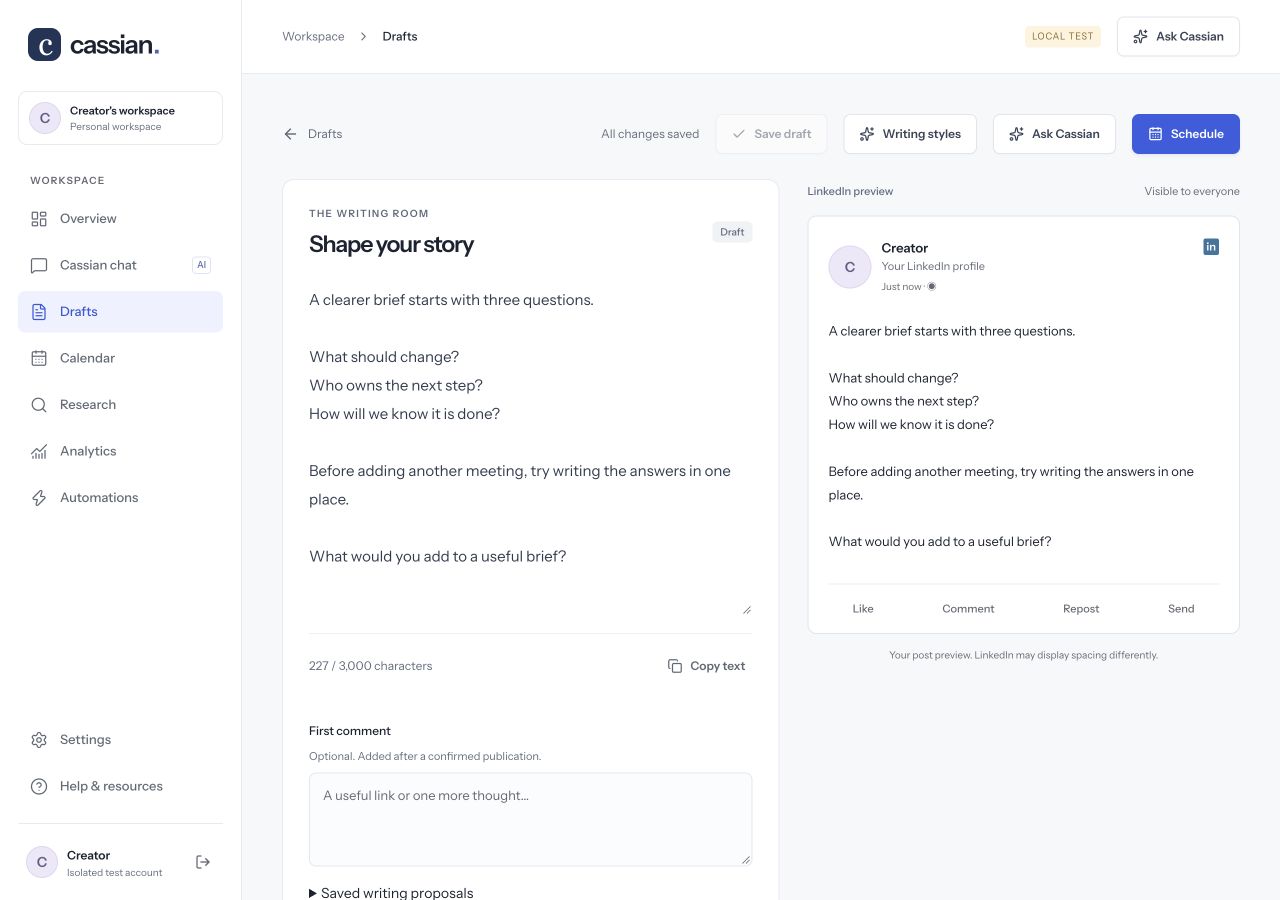
Open Drafts, choose New post and write your first version. Wait for the saved confirmation before reviewing a schedule.
Go to draftsONE CONVERSATION
Web chat uses the same conversation engine as Telegram. Messages and images stay in ordinary bubbles. Use Ask Cassian from a saved draft when you want to discuss its writing; editing and scheduling controls live in the workspace.
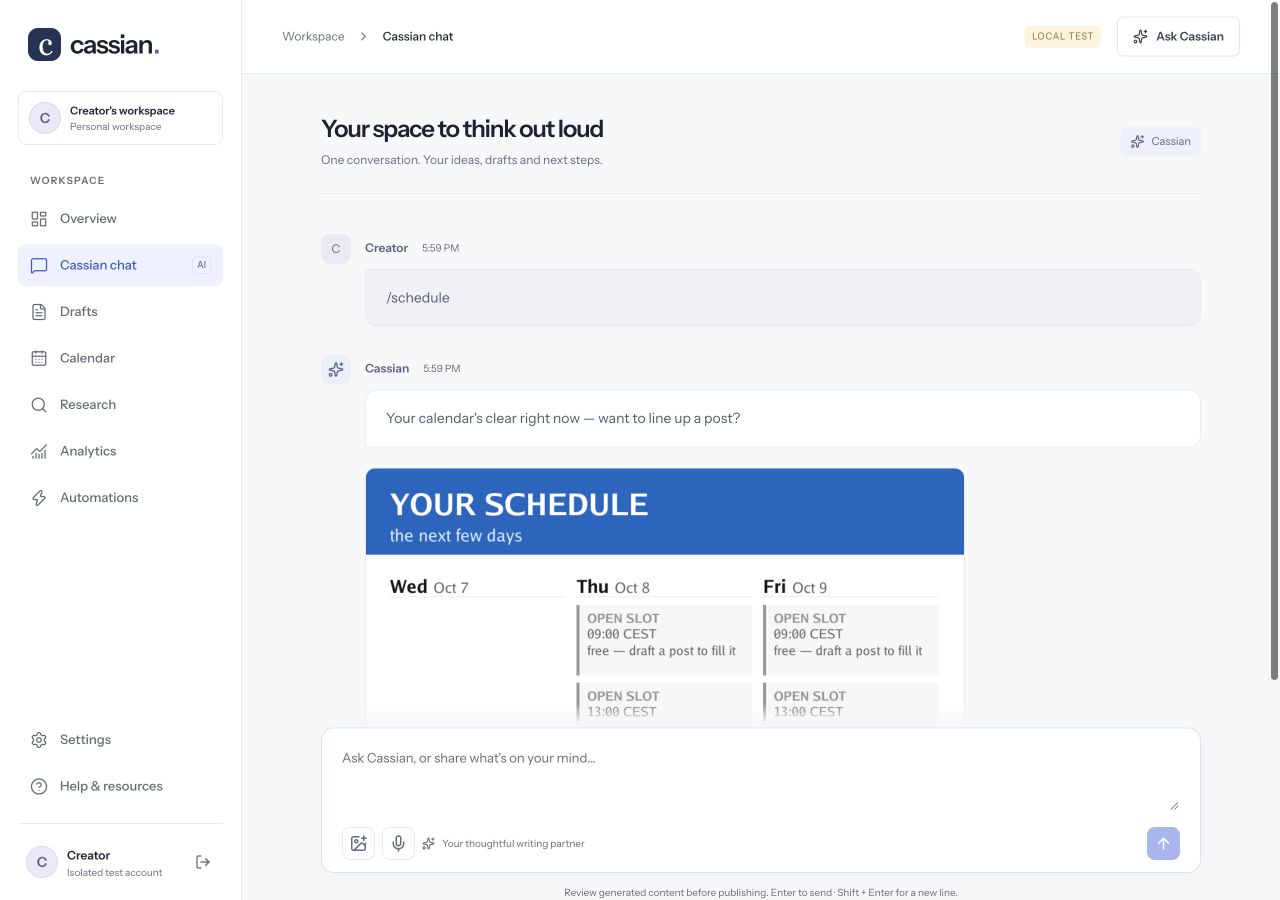
Share an idea, attach a photo or ask about saved work. Review your message before sending. Generated content still needs your review before publication.
Open chatA PLAN YOU CAN SEE
Switch between month, week and agenda views. Before scheduling, review the saved draft, connected account, date and timezone. An accepted job is queued; a confirmed provider result establishes publication.
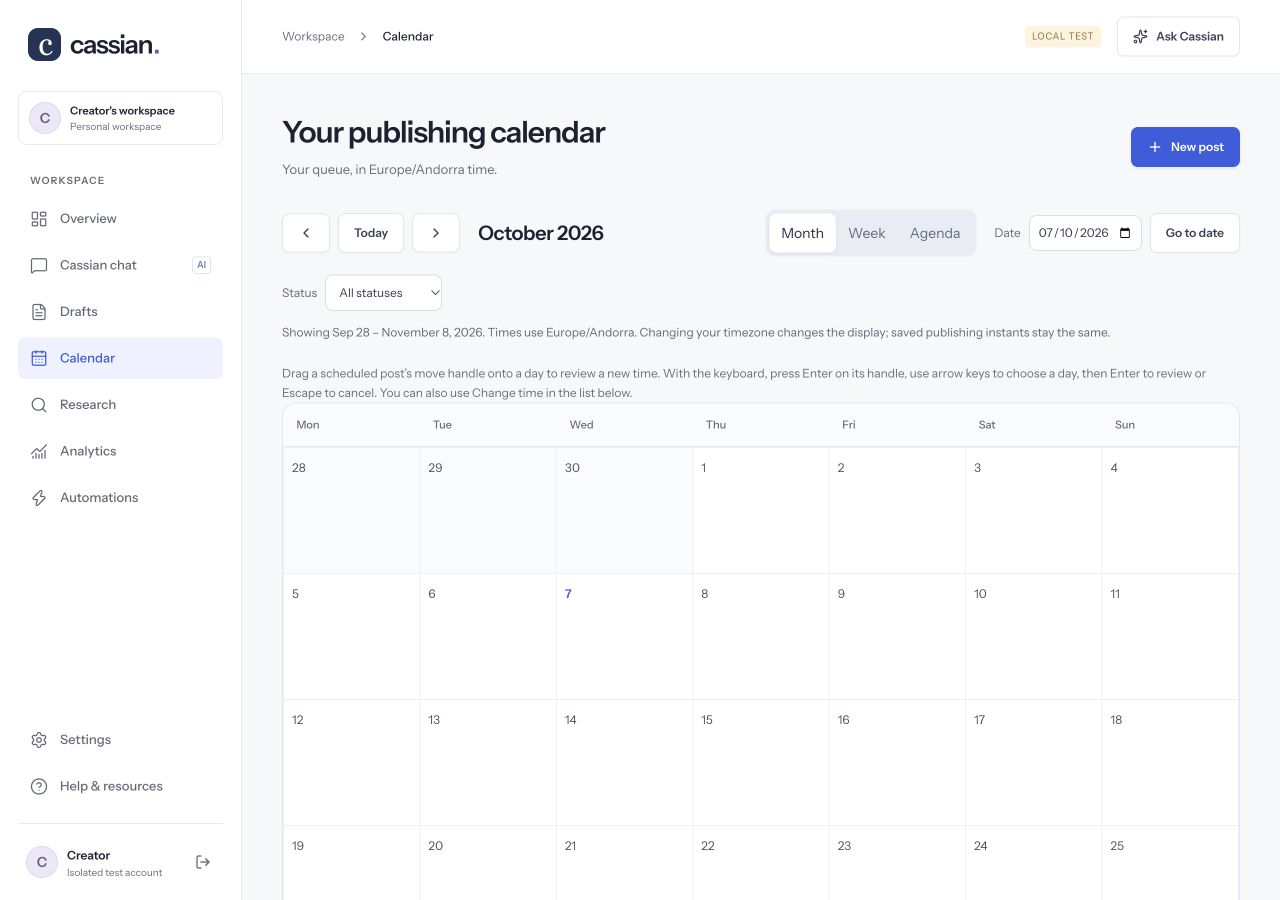
Confirm your timezone in Settings and connect your publishing account. From a saved draft, choose Schedule and review the details before confirming. Inspect uncertain outcomes before retrying.
Review your calendarBEFORE YOUR FIRST POST
Save your goal, voice instructions and timezone. Public profile import is separate from publishing sign-in and can have missing or delayed data.
Billing shows current usage and reservations. Secure checkout opens inside Cassian. Review its price, currency and renewal terms before subscribing. The first paid release is still being prepared.
Background automation is opt-in. Export, reset, disconnect, subscription cancellation and account closure have different effects explained in Settings.
This walkthrough covers writing, chat and calendar controls. It does not demonstrate live provider publishing, a collected payment, private impression metrics, team workspaces or browser video publishing.
YOUR NEXT IDEA STARTS HERE
Open the workspace or contact us for availability and plans.